
If your students have submitted a text document (Word, PDF, etc), you will be able to use VIULearn's built in Annotations tool to markup and provide feedback directly on the document that the student has submitted.
- From the course navigation bar, choose Assessment and then Assignments from the dropdown menu.
- Click on the name of the Assignment Submission folder you wish to provide annotations on.
- Click on the student's submission that you wish to annotate.
- If your student has uploaded a text document (Word, PDF, etc) you will be able to use VIULearn's built in Annotations tool to markup and provide feedback directly on the document.
- Once you have finished, click the Publish button to save and release your feedback and annotations. Alternatively, click the Save Draft button to save your changes.
- You can navigate to the next or previous student's submission by clicking the arrow icons in the upper right hand corner of the page.
| Icon | Tool | Description |
|---|---|---|

| Drawing | Allows you to draw freeform shapes on the page. Click the arow next to the drawing icon to change drawing tools between drawing, freeform highlighter, text highlighter and eraser. 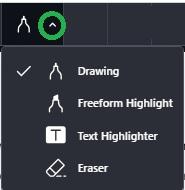
|

| Note | Allows you to write feedback on the page for students to view. It is recommended that you use Notes to provide students written feedback on their document. Users will need to hover their mouse over the note in order to see the text inside. Using Notes allows you to write a large amount of feedback in a condensed space, thereby keeping the rest of the document clean and organized. There are 6 different colour options and 14 different symbol options to choose from. |

| Text | Allows you to write feedback on the page for students to view. It is recommend that you only use the Text feature when you would like to write 1-2 words on the page that students will be able to immediately see. If you would like to write more text, consider using the Note feature instead. |

| Line | Allows you to create lines on the page. Click the arrow beside the icon to access drawing tools for arrows and reactangles. 
|

| Pan mode | Allows you to select and move any Text Highlights, Notes, Text, Lines, Arrows, or Rectangles that you have created on the page. This is a useful tool if you wish to select an item that you have previously created in order to delete it. |

| Trash | When an annotation has been selected, this tool will allow you to permanently delete that annotation from the document. |